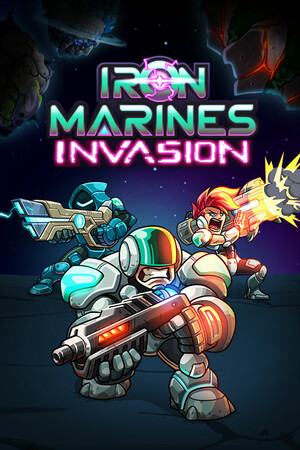
The App Store lists a 13+ age rating and frequent cartoon or fantasy violence. The listing also includes optional in-app purchases. Prices and purchase contents may vary by country and can change, so review the live Apple listing before confirming payment.
Fast answer
The answer before the background
To install Iron Marines Invasion on iOS, open the official Apple App Store, search for “Iron Marines Invasion RTS Game,” and confirm that the developer is Ironhide S.A. Select the listing, review the current price and compatibility notice, then tap the purchase or download button and authenticate with your Apple Account. The current listing supports iPhone on iOS 11.0 or later and iPad on iPadOS 11.0 or later. It also describes offline play. For progress recovery between Apple devices, sign in with the same iCloud and Game Center account and enable iCloud inside the game after installation.
Official route
How to download it safely on iPhone or iPad
The safest route is the official Apple App Store listing. Avoid third-party IPA files, unofficial mirrors, and download pages that ask you to install a configuration profile or use an unknown Apple Account. Those routes are not needed for this game and can create security, payment, or update problems.
On an iPhone or iPad, open the App Store and search for “Iron Marines Invasion RTS Game.” Check the title and developer before downloading: the official listing identifies Ironhide S.A. as the seller. You can also reach the listing through Ironhide’s official game site or support pages, but the final installation should be handled by Apple’s App Store.
- Open the App Store on the device you want to use.
- Search for the full game title, including “RTS Game” if several results appear.
- Confirm that the developer is Ironhide S.A.
- Read the live price, size, age rating, and compatibility notice for your Apple Account region.
- Tap the purchase or download control, authenticate with Face ID, Touch ID, or your Apple Account password, and wait for installation.
- Launch the game once while online so the initial setup, purchases, and save options can complete normally.
| Check before installing | What to confirm |
|---|---|
| Store identity | The title is Iron Marines Invasion RTS Game and the developer is Ironhide S.A. |
| Device software | iPhone has iOS 11.0 or later; iPad has iPadOS 11.0 or later. |
| Available space | The listing shows 740.4 MB, but keep additional free space for installation and temporary files. |
| Payment details | The listing currently shows a paid download with optional in-app purchases; your region may display different pricing. |
The Apple page is the final authority for availability, regional price, compatibility warnings, and the download button. Store metadata can change independently of older version-history entries or screenshots.
Compatibility
iPhone and iPad requirements
Apple’s current listing supports both iPhone and iPad. It specifies iOS 11.0 or later for iPhone and iPadOS 11.0 or later for iPad. This is an operating-system requirement, not a guarantee that every older device will provide the same performance or loading time.
If the App Store says the game is incompatible, update the device through Settings, then check the listing again. If the device cannot update to the required operating system, there is no verified workaround that should be recommended. Do not install an unofficial modified copy to bypass Apple’s compatibility check.
- For iPhone, open Settings, choose General, then Software Update and install an available supported update.
- For iPad, follow the same Settings and Software Update path, then return to the App Store.
- Make sure the device has more free space than the listed app size because iOS may need temporary room during installation.
- If the download remains unavailable, check whether the Apple Account region, parental controls, or purchase restrictions are affecting the listing.
| Device | Verified minimum shown by Apple | Practical advice |
|---|---|---|
| iPhone | iOS 11.0 or later | Use a supported, updated device and expect performance to vary on older hardware. |
| iPad | iPadOS 11.0 or later | The game is listed for iPad; check free storage and update status before downloading. |
| Apple Vision | visionOS 1.0 or later is also displayed | This guide focuses on iPhone and iPad, so confirm the live listing if using another Apple device. |
The available official listing does not provide a complete model-by-model performance recommendation. It is therefore safer to treat the operating-system requirement as the verified baseline rather than promising a specific frame rate or experience on a particular iPhone or iPad.
Connectivity and saves
What works offline and what needs a connection
The App Store description says the game can be played offline, which is useful after the initial download and setup. You still need an internet connection to obtain the app, install updates, process purchases, and use services that depend on Apple or Ironhide accounts.
Ironhide’s iOS support instructions say that signing in with iCloud allows progress to be saved automatically. The same support page instructs players to open the game, load the save file, open the Settings menu from the map, and check that iCloud is enabled. Cloud recovery requires the same account and a connection to the cloud.
- Install and open the game while connected to Wi-Fi or mobile data.
- Use the same iCloud and Game Center account on each Apple device.
- From the in-game map, open Settings and confirm that the iCloud option is enabled.
- Before uninstalling or changing devices, open the game online and allow the save to synchronize.
- If purchases or progress are missing, verify the account and cloud-save setting first, then contact Ironhide support with purchase evidence if necessary.
| Task | Connection needed? | Reason |
|---|---|---|
| Downloading the app | Yes | The App Store must retrieve and verify the installation. |
| Normal offline play | Generally no | The store description advertises offline play. |
| Cloud-save synchronization | Yes when syncing | Progress is stored through iCloud and needs cloud access. |
| Restoring purchases | Usually yes | Apple account and purchase information must be checked. |
A mission may be playable without a connection, but a new device cannot retrieve cloud progress until it can reach iCloud. Confirm synchronization before relying on offline access.
Troubleshooting
If the App Store download does not work
Start with the simple checks: confirm that the device meets the operating-system requirement, free enough storage, and has a stable connection. Restarting the App Store or the device can clear a stalled download, but do not repeatedly purchase the game if the download button behaves unexpectedly.
If the game installs but progress is missing, do not delete the app immediately. First check that you are using the same iCloud and Game Center account and that iCloud is enabled in the game’s Settings. Ironhide’s support documentation says its team can assist with missing progress or purchases, although manual recovery may not restore every achievement, challenge, or hero level.
- Check Settings, General, Software Update for the required iOS or iPadOS version.
- Check iPhone Storage or iPad Storage and leave room beyond the listed 740.4 MB.
- Confirm the App Store is signed in with the Apple Account that owns the purchase.
- Install available game or system updates before testing again.
- Use Ironhide’s official support pages for missing progress or purchases rather than third-party fixes.
The visible App Store history available during research shows version 1.0.8 dated December 15, 2022, but that historical entry may not reflect the newest build in every storefront. Always use the live listing’s current version and compatibility message when making an installation decision.
FAQ
Common questions
Is there an official iPhone download?
Yes. The official Apple App Store lists Iron Marines Invasion RTS Game for iPhone, with Ironhide S.A. shown as the developer. Search the App Store by the full title and verify the developer before downloading.
Can I install it on an iPad?
Yes. Apple’s listing includes iPad support and currently specifies iPadOS 11.0 or later. The device still needs enough storage and must be able to access the listing in its Apple Account region.
What iOS version does it require?
The current App Store listing specifies iOS 11.0 or later for iPhone and iPadOS 11.0 or later for iPad. Check the live listing because Apple can revise compatibility information.
Can I play without Wi-Fi?
The store description advertises offline play after installation. You need a connection for downloading, updates, purchases, and cloud synchronization, so open the game online before attempting to rely on an offline save.
How do I move progress to another Apple device?
Use the same iCloud and Game Center account, then enable iCloud in the game’s Settings menu. Ironhide says progress can be recovered through iCloud when the same account and a cloud connection are available.
What should I do if a purchase or save is missing?
Check the Apple Account, confirm that iCloud is enabled, and make sure Game Center is updated. If the problem remains, contact Ironhide support and provide the requested purchase evidence or details about the missing save.
Sources
What we checked
Official listings establish current availability and product facts. Community pages are used for mechanics and build history, then labeled separately.