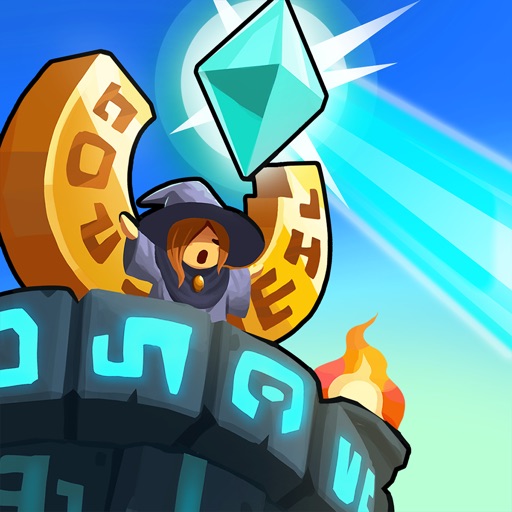
The App Store lists cartoon or fantasy violence, advertising, loot boxes, and optional in-app purchases. Review Apple’s age-rating and purchase controls before installing it for a child.
Fast answer
The answer before the background
Open the App Store on your iPhone or iPad and search for “Realm Defense: Hero Legends TD.” Confirm that Babeltime Inc. is the developer, then tap Get. The official listing supports iPhone and iPad. It requires iOS 15.2 or later on iPhone and iPadOS 15.2 or later on iPad. The game is free to download, but it contains advertising and optional in-app purchases. If the app does not appear or will not install, check your software version, available storage, internet connection, Apple Account, and payment details.
Official route
Download it from Apple’s App Store
The safest installation route is the official App Store listing named “Realm Defense: Hero Legends TD.” The listing identifies Babeltime Inc. as the developer and marks the game as free with in-app purchases. Checking the developer name helps avoid similarly titled apps or unofficial download pages.
On an iPhone or iPad, open the App Store and search for the full title. Select the result with the Realm Defense icon, verify the developer is Babeltime Inc., and review the compatibility information before tapping Get. Authenticate with Face ID, Touch ID, or your Apple Account password if Apple asks for it.
Avoid downloading an iOS installation file from a third-party site. iPhone and iPad apps should be installed through Apple’s distribution system, where the listing, permissions, age rating, updates, and purchase information are visible before installation.
- Open the App Store.
- Search for “Realm Defense: Hero Legends TD.”
- Confirm the developer is Babeltime Inc.
- Check the iPhone or iPad requirement shown on the listing.
- Tap Get and wait for the installation to finish.
- Tap Open to launch the game.
| Item | Verified listing information |
|---|---|
| Price | Free download |
| Developer | Babeltime Inc. |
| App size | About 1.3 GB |
| iPhone requirement | iOS 15.2 or later |
| iPad requirement | iPadOS 15.2 or later |
| Purchases | In-app purchases are available |
App Store size, screenshots, ratings, events, supported languages, and the latest build can change without notice. The exact current version number was not confirmed in the accessible listing data, so check the App Store page on your device for the build currently offered.
Compatibility
iPhone and iPad requirements
The current App Store record lists the game for iPhone and iPad. On iPhone, the device must run iOS 15.2 or later. On iPad, it must run iPadOS 15.2 or later. If your device cannot update to those operating-system versions, Apple may hide the Get button or report that the app is incompatible.
The listing describes the game as designed for iPad, so it is not merely an iPhone-only app stretched onto a tablet. The same App Store record also mentions iPod touch, Apple silicon Mac, and Apple Vision compatibility, but this guide focuses on the requested iPhone and iPad route.
The download is relatively large at about 1.3 GB in the checked listing. Keep additional free space available because iOS or iPadOS may need room to download, unpack, install, and later update the game. The game is described as an online title, so plan to use a stable connection when first launching it and when accessing online features.
- For iPhone: use iOS 15.2 or later.
- For iPad: use iPadOS 15.2 or later.
- Keep more free space than the listed 1.3 GB download size.
- Use Wi-Fi if the download is slow or your cellular data allowance is limited.
- Check the listing again after major operating-system or app updates.
| Device | Minimum operating system |
|---|---|
| iPhone | iOS 15.2 or later |
| iPad | iPadOS 15.2 or later |
Update the device to the latest iOS or iPadOS version available for that model before troubleshooting the installation. Do not assume that an older iPhone or iPad can run the game merely because it can open the App Store.
Troubleshooting
If the download will not start
First, check the device requirement on the listing and open Settings to confirm the installed software version. On an iPhone or iPad, the software details are under Settings, General, About. If the device is below the required version, use Settings, General, Software Update to see whether an update is available.
Next, check storage under Settings, General, iPhone Storage or iPad Storage. A download can fail when the device has too little free space, even if the displayed app size appears to fit. Removing unused downloads or enabling Apple’s offload options can help, but protect important game data before deleting anything.
Apple also recommends checking the internet connection, restarting the device, and resolving any billing or verification message. A valid payment method may sometimes be required even for a free app, particularly when the Apple Account has a previous billing issue. If the icon is stuck, touch and hold it and choose Prioritize Download when that option appears.
If the app installs but will not open, close and reopen it, restart the device, and check for an App Store update. Deleting and reinstalling can remove locally stored app data, so use that step only after considering whether your progress is linked to an account or otherwise backed up. The available sources do not verify the game’s current progress-transfer policy, so do not assume that reinstalling preserves every save.
- Confirm iOS or iPadOS meets the minimum.
- Check free storage.
- Use a reliable Wi-Fi connection.
- Restart the device if the download is stuck.
- Resolve Apple Account billing or verification prompts.
- Update the app before reinstalling it.
- Treat deletion as a last resort if save preservation is uncertain.
The App Store listing confirms the operating-system requirements, but it does not establish a universal guarantee that progress will transfer between every device, account type, or platform. Verify your in-game account options before changing devices.
After installation
Updates, purchases, and safe setup
After installing, keep automatic App Store updates enabled or check manually for updates from your account page. Updates can include compatibility fixes, content changes, event changes, or server-related fixes. Because the exact current build number was not confirmed here, the App Store on your device remains the authority for the version available in your region.
The listing describes a free game with advertising and optional in-app purchases. It also lists loot boxes and cartoon or fantasy violence in its content information. If you share the device with a child, use Apple’s Screen Time and purchase restrictions to prevent accidental spending.
The game’s listed content includes multiple worlds, tower-defense stages, heroes, tournaments, and online features. Those descriptions come from the store listing and may change as the publisher updates the app. They are useful for identifying the correct game, but they should not be treated as a permanent promise about a particular event, mode, hero, or reward.
- Use the App Store as the source for future updates.
- Review purchase settings before handing over the device.
- Remember that free installation does not mean every feature is free.
- Check the current listing for changed requirements or content notices.
Before switching devices, record the sign-in method or account details shown inside the game. This is a practical precaution, not a confirmed statement that every type of progress can be transferred.
FAQ
Common questions
Is Realm Defense available on iPhone?
Yes. The official App Store listing identifies the app as compatible with iPhone and requires iOS 15.2 or later.
Can I install it on an iPad?
Yes. The listing supports iPad and requires iPadOS 15.2 or later. It is also marked as designed for iPad.
Is the iOS download free?
The app is listed as free to download. It includes advertising and optional in-app purchases, including purchasable game resources.
Why can’t I find the app on my older iPhone or iPad?
The device may not support the required operating system. The current listing requires iOS 15.2 or later on iPhone and iPadOS 15.2 or later on iPad. Regional availability or an Apple Account issue can also affect what appears in the App Store.
How much storage should I leave free?
The checked listing reports an app size of about 1.3 GB. Leave additional space beyond that figure for downloading, installation, temporary files, and future updates.
Sources
What we checked
Official listings establish current availability and product facts. Community pages are used for mechanics and build history, then labeled separately.